Practical PDF tools for every workflow
Free PDF tools — merge, split, and organize files
Use focused PDF tools to convert, merge, split, compress, organize, and protect files. Each tool clearly states how your file is processed.
All Tools
Choose a PDF task and open the tool page that matches it.
JPG to PDF Converter
Preview, arrange, and convert JPG, JPEG, PNG, or WebP images into a multi-page PDF.
Organize page by page
Merge, split, rotate, reorder, delete, or extract.
Move between PDF and images
Create a PDF from images or export pages to JPG and PNG.
No account for common tasks
Open a tool, work with your file, and download the result.
The tool library
Pick a tool. Finish the task.
Every available tool has one focused workflow and clearly states how your file is processed.
Convert to PDF
Turn JPG, PNG, JPEG, or WebP images into a shareable PDF.
Image to PDF
Preview, arrange, and convert JPG, JPEG, PNG, or WebP images into a multi-page PDF.
Word to PDF
Convert Word, DOC, or DOCX files to PDF using a private LibreOffice backend.
Excel to PDF
Convert XLS or XLSX spreadsheets to PDF using a private LibreOffice backend.
PowerPoint to PDF
Convert PPT or PPTX presentations to static PDF pages using a private LibreOffice backend.
Combine and split PDFs
Join PDF files or save a page range as a new PDF.
Organize and export PDFs
Rotate, reorder, remove, extract, or export PDF pages without uploading the original file.
Rotate PDF
Preview PDF pages and rotate individual pages by 90, 180, or 270 degrees.
Delete PDF Pages
Preview a PDF, select unwanted page thumbnails, and download a new copy with those pages removed.
Reorder PDF Pages
Preview PDF pages and arrange them into a new order.
Extract PDF Pages
Pick specific pages from a PDF and save them as a new document.
PDF to Image
Convert PDF pages to JPG, JPEG, or PNG images with page preview.
PDF to Word
Convert text-based PDF files to editable Word DOCX documents with best-effort layout recovery.
PDF to PowerPoint
Convert each PDF page into a visual PowerPoint slide. Text is not editable in this version.
Protect PDF
Add an open password to a PDF using a server-side qpdf workflow.
Unlock PDF
Remove PDF encryption when you know the document password.
Compress PDF
Reduce PDF file size using a server-side Ghostscript workflow.
A simple workflow
Start with the task—not another account.
OmniPDF keeps the journey short: choose the action, make the change, and download a new copy of your file.
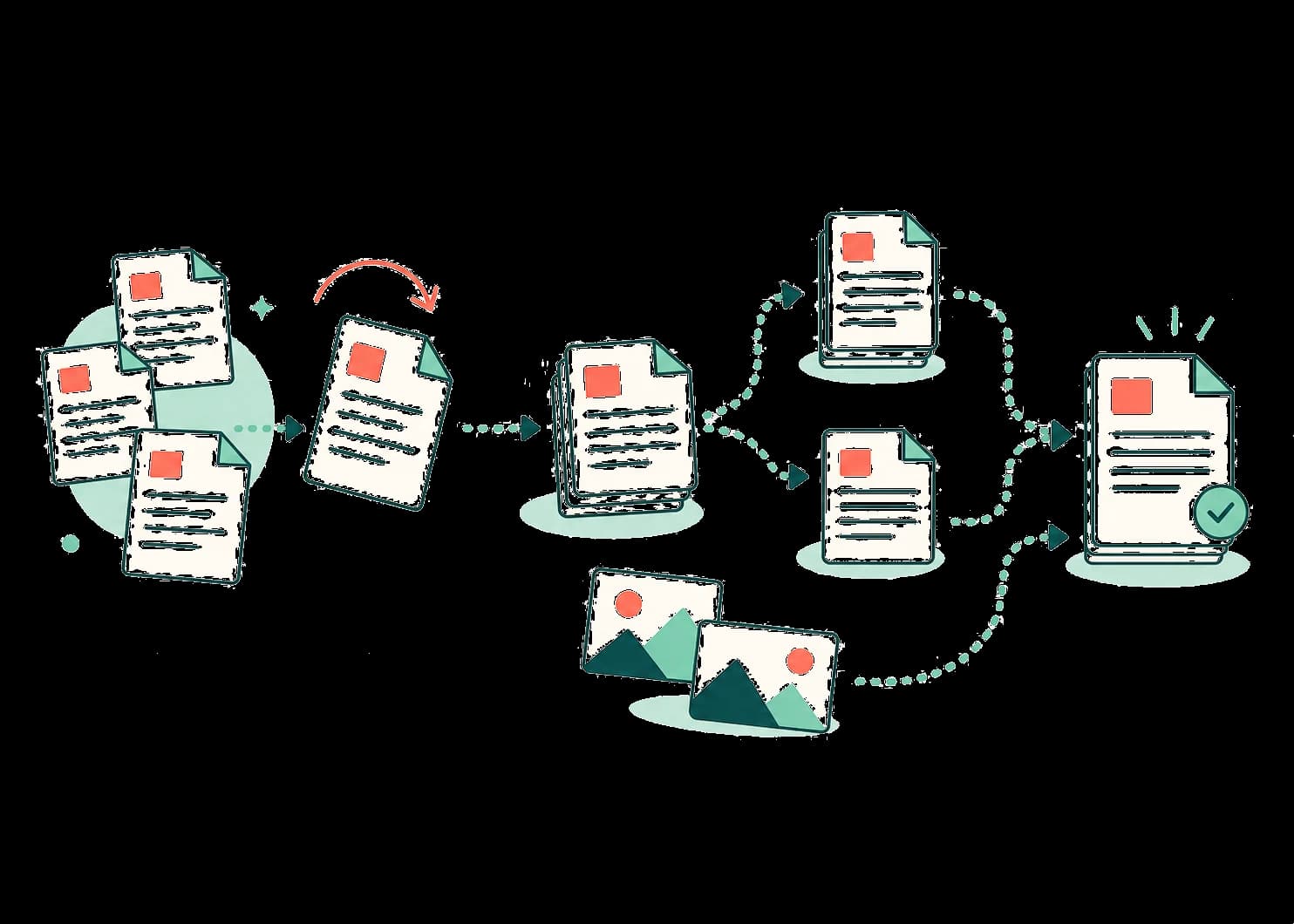
How files are handledUpload
Select the PDF file or files you want to work with.
Process
Choose the pages, order, or rotation you need.
Download
Download a new PDF while the original stays unchanged.
From files to finished PDF
Learn by doing
Need a quick walkthrough?
Our guides explain common PDF tasks, then take you straight to the right tool.
Browse PDF guidesGood to know
Frequently asked questions
Which PDF tools are available?+
OmniPDF provides 16 tools for converting, organizing, compressing, and protecting PDF files.
Do I need to create an account?+
No. Choose the tool you need, work with your file, and download the result without signing up.
Where are my PDF files processed?+
Some tools run in your browser, while others use encrypted temporary server processing. Every tool page identifies its processing method.
Which devices can I use?+
OmniPDF works in modern desktop and mobile browsers. Open a tool and choose files stored on your device.