WherePDF

Delete PDF pages guide

How to remove pages from a PDF

Remove pages when a PDF includes blank scans, duplicate forms, or material you do not want to share. The tool makes a new copy, leaving the original intact.

Open Delete PDF Pages

No account required. This tool processes your file on this device.
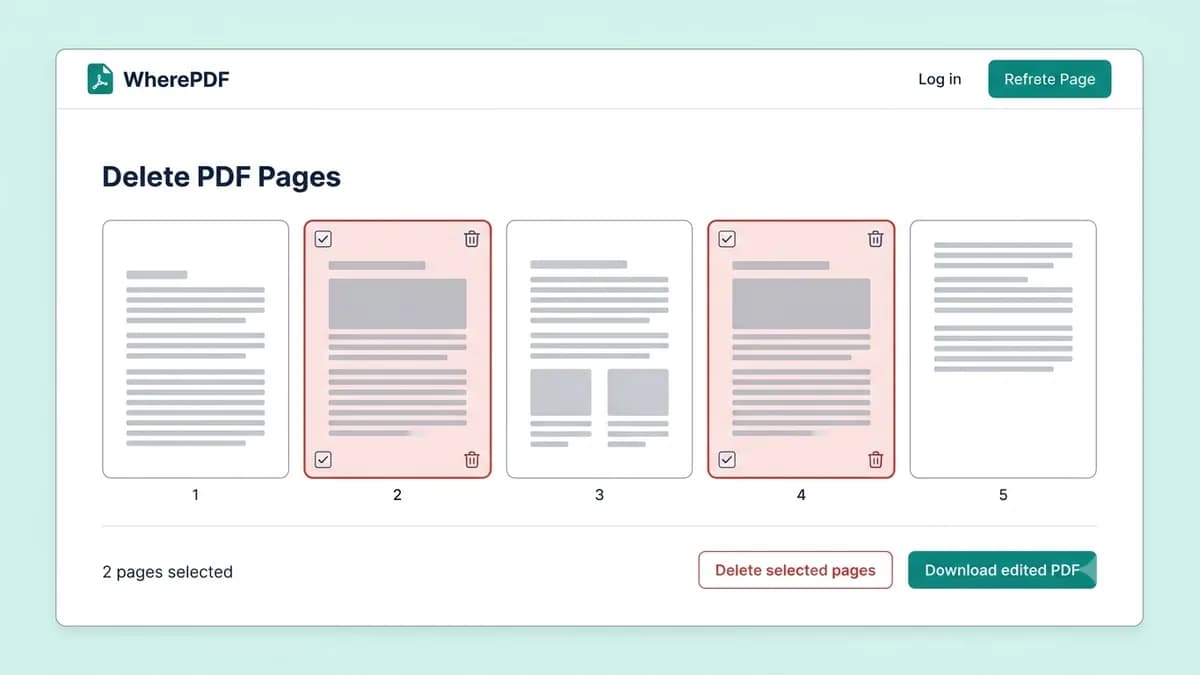
WherePDF Delete PDF Pages screen with unwanted pages selected

The process

Complete it in three steps

  1. 1

    Open Delete PDF Pages

    Choose the PDF that contains pages you no longer need. A page selection preview opens after upload.

  2. 2

    Select unwanted pages

    Click the page thumbnails you want to remove. Use Select all or Clear selection when you need to adjust the choice.

  3. 3

    Download a clean copy

    Apply the selection, choose Delete selected pages, and download the PDF with the remaining pages.

Common questions

Can I remove multiple PDF pages at once?

Yes. Select as many unwanted pages as you need, as long as at least one page remains.

Can I remove blank pages from a PDF?

Yes. Select the blank page thumbnails and create a new cleaned PDF.

Will this edit my original PDF?

No. The tool downloads a new copy and leaves your source file unchanged.