Excel to PDF guide

How to convert Excel XLS or XLSX files to PDF

Turning a spreadsheet into PDF makes it easier to share a fixed view of tables, charts, and worksheets. Spreadsheet print settings have a direct effect on how many PDF pages are created.

Open Excel to PDF

No account required. This tool uses encrypted upload and temporary server processing.
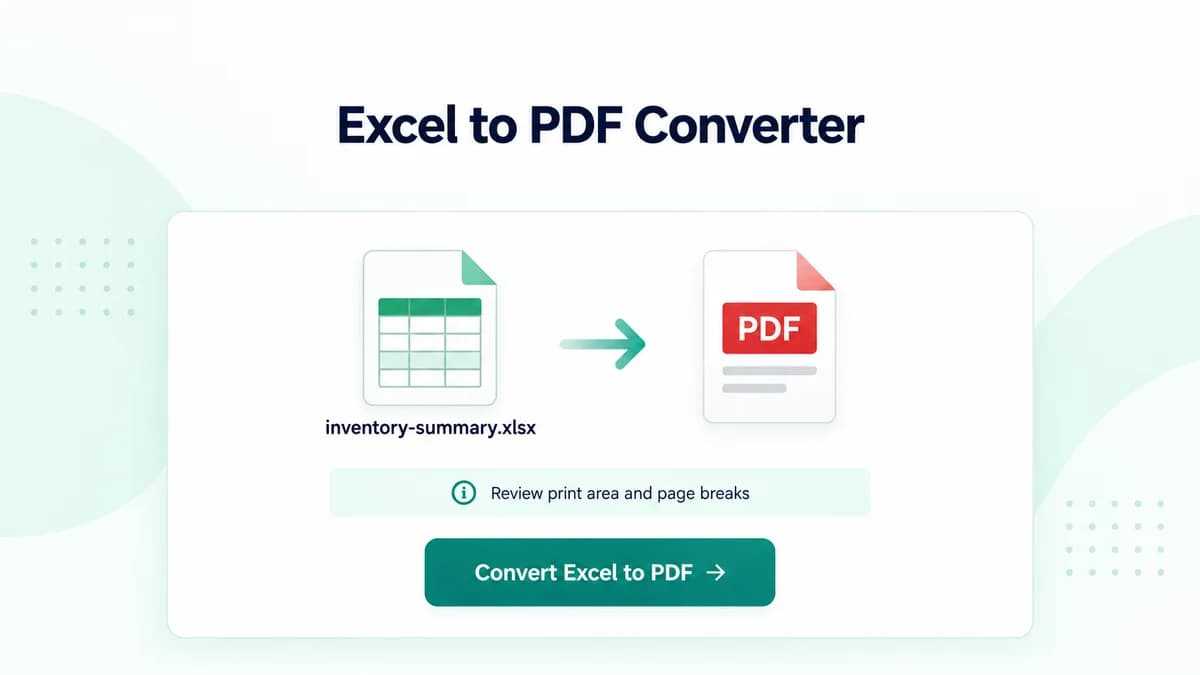
OmniPDF Excel to PDF tool with a fictional XLSX workbook prepared for PDF conversion

The process

Complete it in three steps

  1. 1

    Review the workbook print layout

    Check print areas, hidden sheets, column widths, page orientation, scaling, and manual page breaks in Excel before conversion.

  2. 2

    Choose the spreadsheet file

    Open Excel to PDF and upload one XLS or XLSX workbook up to 10 MB. Password-protected workbooks must be unlocked first.

  3. 3

    Check every PDF page

    Download the result and inspect each worksheet for clipped columns, unexpected blank pages, chart placement, and readable scaling.

Common questions

Why are columns split across several PDF pages?

The workbook’s print area, paper size, orientation, scaling, and column widths determine how the sheet is paginated.

Will every worksheet be included?

Workbook and print settings control what LibreOffice exports, so review hidden sheets and defined print areas before uploading.

Can charts move during conversion?

Complex charts and floating objects can render differently, so inspect their placement in the downloaded PDF.

Is the older XLS format supported?

Yes, but XLSX generally provides more predictable results for modern spreadsheets.