Word to PDF guide

How to convert Word DOC or DOCX files to PDF

Convert a Word document to PDF when you need a fixed-layout copy for sharing, printing, or archiving. A quick source-file review helps avoid font substitutions and unexpected page breaks.

Open Word to PDF

No account required. This tool uses encrypted upload and temporary server processing.
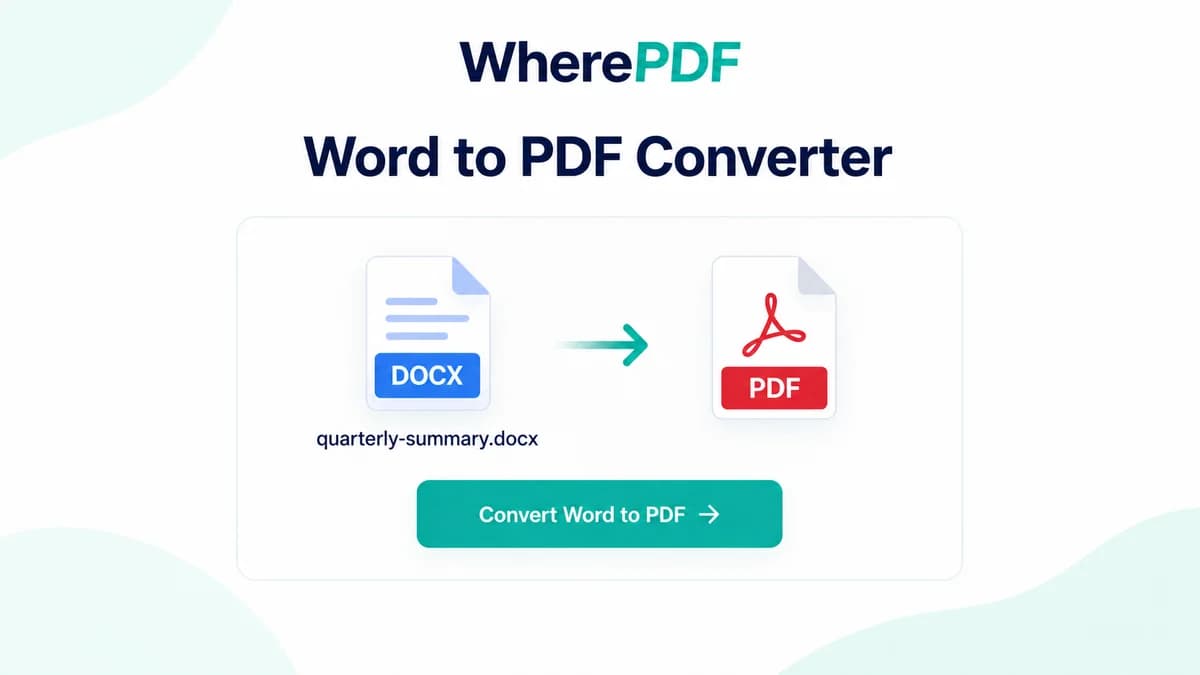
OmniPDF Word to PDF tool with a fictional DOCX document ready for conversion

The process

Complete it in three steps

  1. 1

    Prepare the Word document

    Save final edits, review page breaks, and use embedded or commonly available fonts. Remove password protection before uploading.

  2. 2

    Upload the DOC or DOCX file

    Open Word to PDF, choose one DOC or DOCX file up to 10 MB, and start the server conversion.

  3. 3

    Inspect the finished PDF

    Download the PDF and compare headings, tables, images, headers, footers, and page count with the Word source.

Common questions

Should I use DOC or DOCX?

DOCX is the more reliable choice for modern documents, although the converter also accepts older DOC files.

Why can page breaks change in the PDF?

Font availability, margins, and layout interpretation can change line wrapping and move content onto a different page.

How can I reduce font substitutions?

Prefer widely available fonts or embed fonts in the source document when your editor supports it.

Can the service open a password-protected Word file?

No. Remove the Office document password before starting the conversion.