PowerPoint to PDF guide

How to convert PowerPoint PPT or PPTX files to PDF

Export a presentation as PDF when recipients need a fixed, printable copy instead of an editable slide deck. The result preserves static slide pages but cannot carry interactive presentation behavior.

Open PowerPoint to PDF

No account required. This tool uses encrypted upload and temporary server processing.
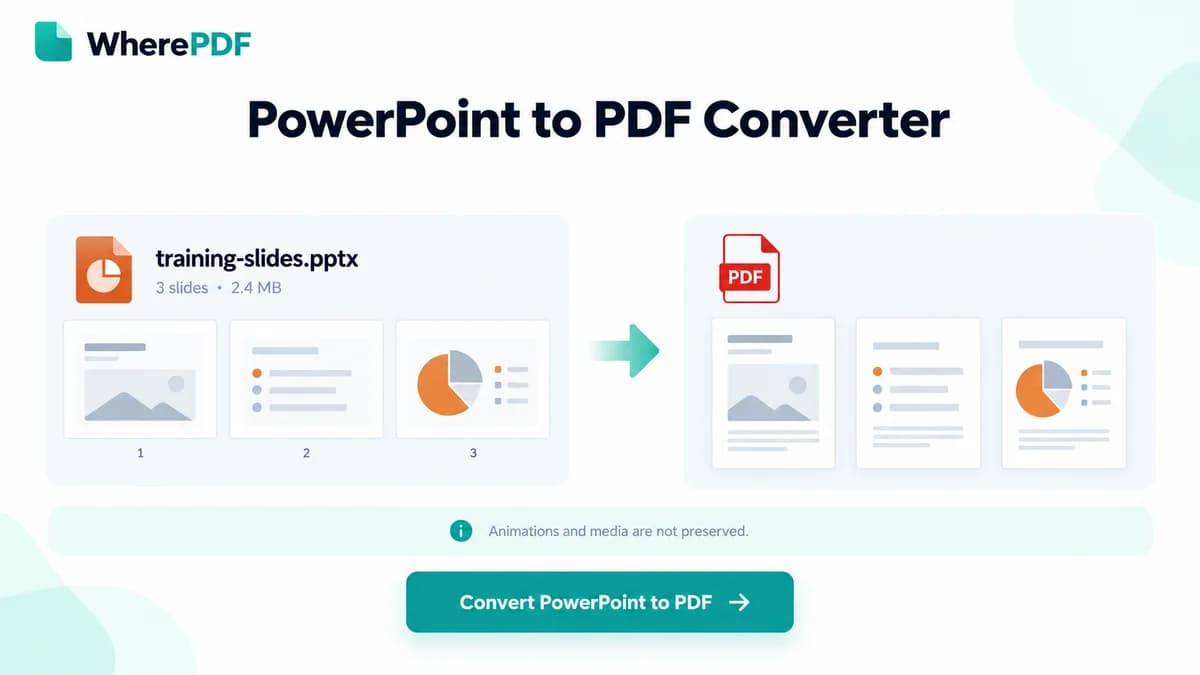
OmniPDF PowerPoint to PDF tool with a fictional PPTX presentation ready to become static PDF pages

The process

Complete it in three steps

  1. 1

    Prepare a static version of the deck

    Review fonts, overlapping objects, transitions, speaker-dependent content, and any slide that relies on animation, audio, or video.

  2. 2

    Upload the PPT or PPTX file

    Open PowerPoint to PDF, choose one presentation up to 10 MB, and start the LibreOffice conversion.

  3. 3

    Review the PDF slide pages

    Download the PDF and check slide order, font rendering, charts, object alignment, and frames that represent previously animated content.

Common questions

What happens to PowerPoint animations?

PDF pages are static, so animations and transitions do not play in the converted file.

Are embedded videos and audio included?

No. Interactive media is not preserved as playable content in the PDF output.

Why might presentation fonts look different?

If a source font is unavailable to the converter, LibreOffice may substitute another font and alter text wrapping.

Can I convert an older PPT presentation?

Yes. PPT is accepted, although PPTX usually produces a more predictable modern conversion.