WherePDF

Image to PDF guide

How to convert JPG, PNG, and WebP images to PDF

Use this method to turn photos, scans, and screenshots into one shareable document. You can review the image order before each image becomes its own page in the finished PDF.

Open Image to PDF

No account required. This tool uses encrypted upload and temporary server processing.
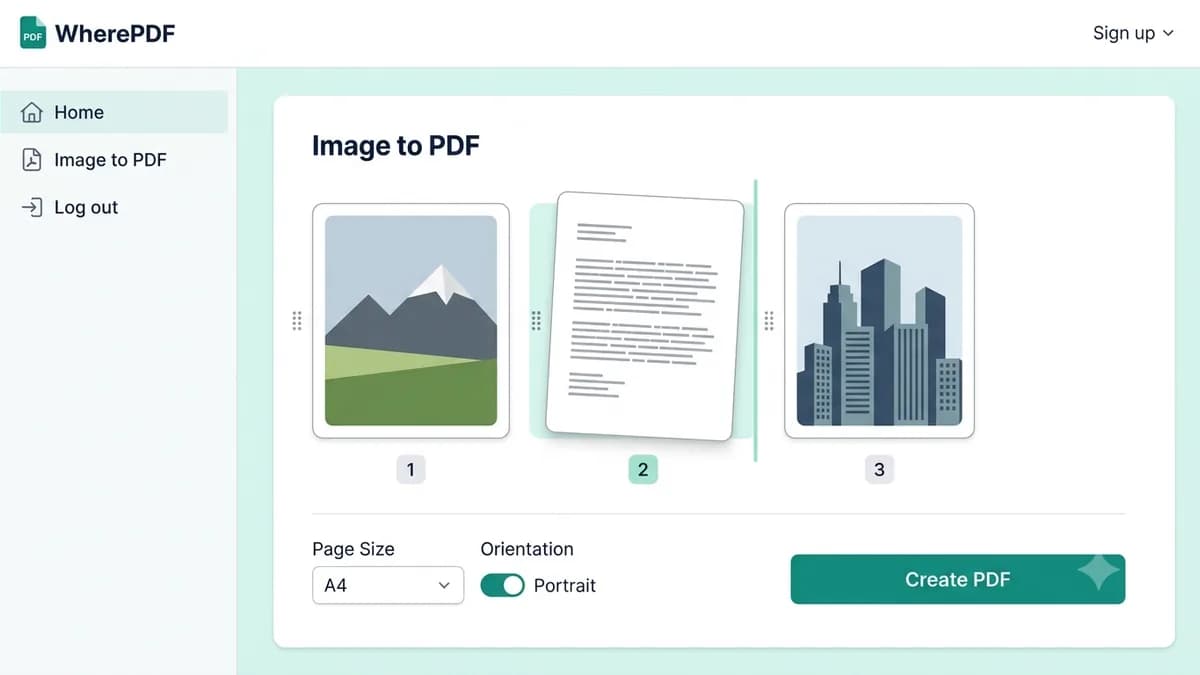
WherePDF Image to PDF preview showing three sample images arranged in order

The process

Complete it in three steps

  1. 1

    Open Image to PDF

    Choose JPG, JPEG, PNG, or WebP images from your device. You can add up to 20 images in one job.

  2. 2

    Review the page order

    Open the image preview, remove images you do not need, and move the remaining images into the order you want.

  3. 3

    Create the PDF

    Select Convert images to PDF. The images are uploaded over HTTPS for temporary server processing, then the new multi-page PDF is ready to download.

Common questions

Can I convert several images into one PDF?

Yes. Choose several supported images, set their order, and create one multi-page PDF.

Can I change image order before converting?

Yes. Open the preview and use the controls to put images in the order you need.

Do images upload to a server?

Yes. Image to PDF uploads the selected images over HTTPS for temporary processing. Uploads and results currently expire within 24 hours.