WherePDF

PDF to image guide

How to convert PDF pages to JPG or PNG

Use PDF to Image when a page needs to become a picture for a presentation, message, website, or image editor. You can export one page, selected pages, or every page in the document.

Open PDF to Image

No account required. This tool uses encrypted upload and temporary server processing.
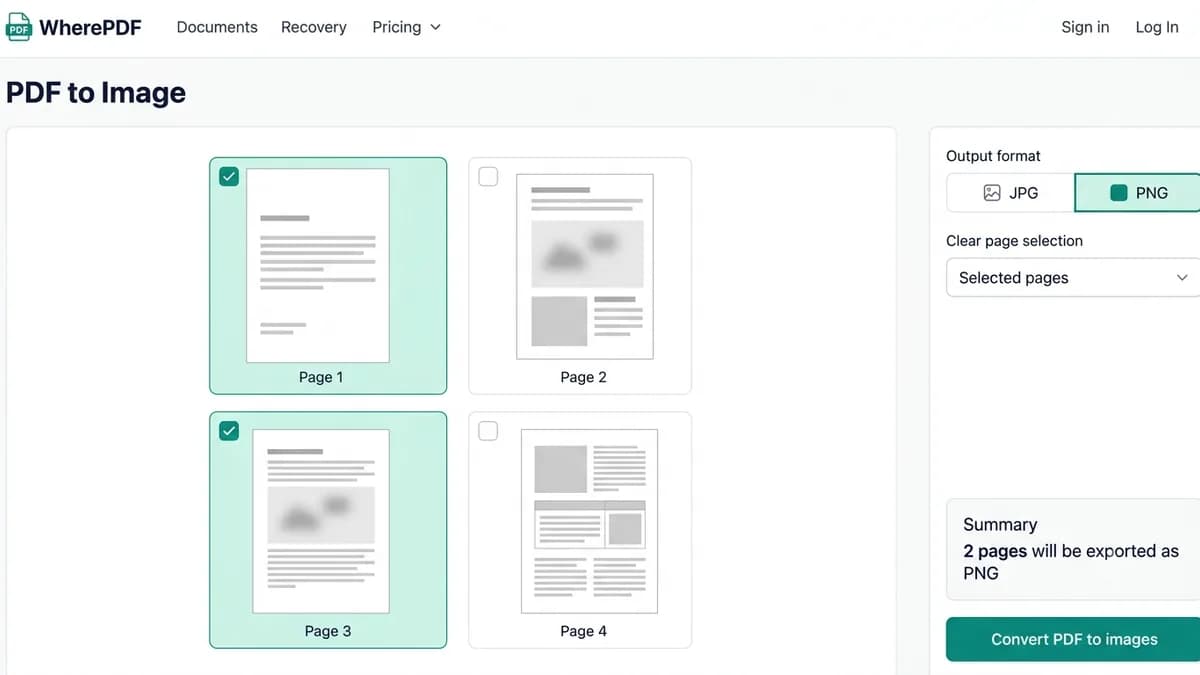
WherePDF PDF to Image preview showing PNG format and selected pages

The process

Complete it in three steps

  1. 1

    Open PDF to Image

    Choose one PDF from your device. The tool opens a visual preview before it exports any pages.

  2. 2

    Choose format and pages

    Pick JPG for smaller files or PNG for lossless images, then choose one page, selected pages, or all pages.

  3. 3

    Download the images

    Select Convert PDF to images. The PDF is uploaded over HTTPS for temporary processing; one image downloads directly and multiple pages are delivered in a ZIP file.

Common questions

Can I convert just one PDF page to JPG?

Yes. Choose the single-page export mode and select the page you need.

Can I convert PDF pages to PNG?

Yes. Choose PNG in the export settings before you process the PDF.

How do multiple image files download?

When you export more than one page, the tool packages the images in one ZIP file.