WherePDF

Extract PDF pages guide

How to extract specific pages from a PDF

Extract pages when you need to keep specific forms, receipts, or reference pages from a longer document. It is the right option for non-adjacent pages.

Open Extract PDF Pages

No account required. This tool processes your file on this device.
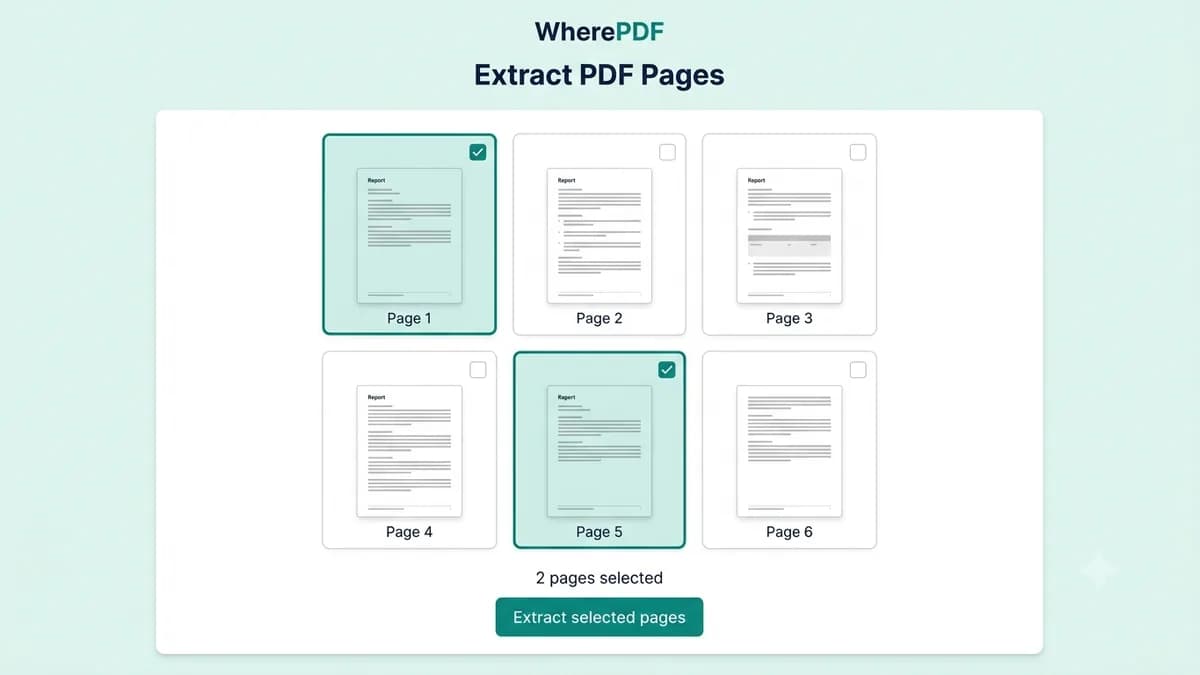
WherePDF Extract PDF Pages screen with two non-adjacent pages selected

The process

Complete it in three steps

  1. 1

    Open Extract PDF Pages

    Choose the PDF file you want to copy pages from. A visual page selector opens after the file is ready.

  2. 2

    Select the pages to keep

    Choose one page, several pages, or pages that are not next to each other. The selection shows how many pages will be copied.

  3. 3

    Save the extracted PDF

    Apply the page selection, choose Extract selected pages, and download the smaller PDF.

Common questions

Can I extract one page from a PDF?

Yes. Select a single thumbnail and create a new one-page PDF.

Can I extract non-adjacent pages?

Yes. Select any combination of pages in the visual page selector.

Will the original PDF change?

No. Extraction creates a separate PDF containing only the pages you chose.