PDF to PowerPoint guide

How to convert PDF pages to PowerPoint slides

Use PDF to PowerPoint when you need a slide deck that preserves the visual appearance of a PDF for presenting, annotating, or arranging pages. Each source page becomes one slide image.

Open PDF to PPT

No account required. This tool uses encrypted upload and temporary server processing.
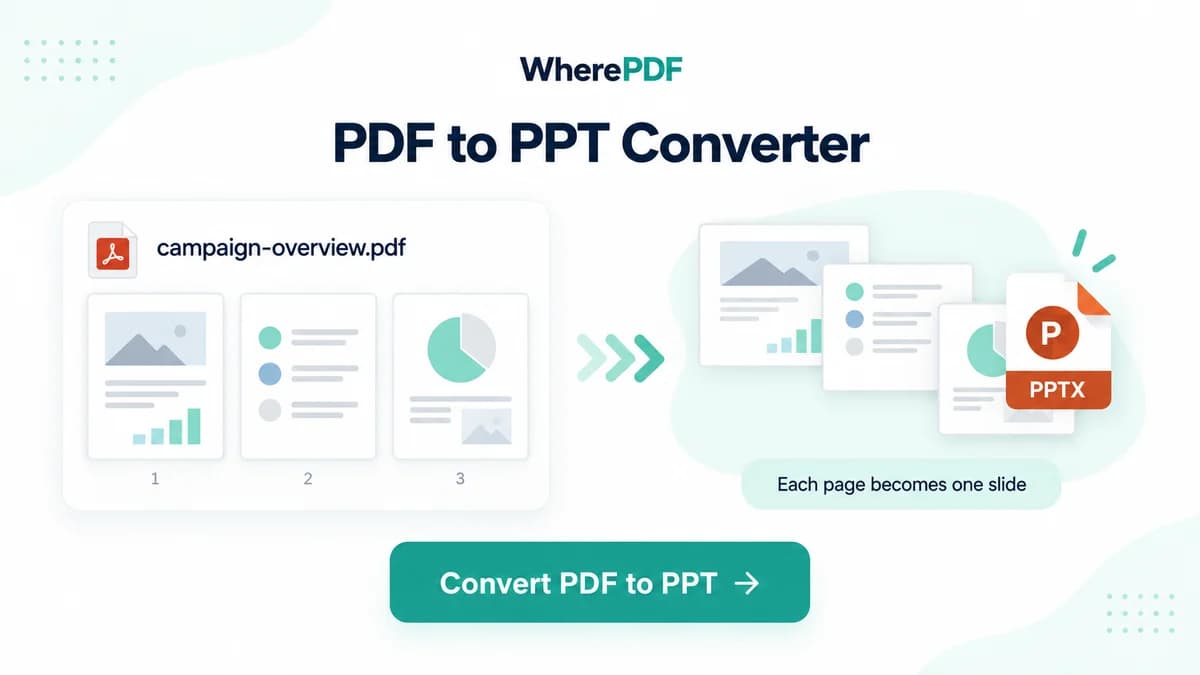
OmniPDF PDF to PPT conversion showing sample PDF pages becoming PowerPoint slides

The process

Complete it in three steps

  1. 1

    Choose the source PDF

    Open PDF to PPT and select one PDF up to 10 MB and 100 pages. Unlock protected files before starting.

  2. 2

    Convert pages into slides

    Select Convert PDF to PPT. The server renders every PDF page and fits it onto a PowerPoint slide without stretching its proportions.

  3. 3

    Download the PPTX deck

    Save the generated PPTX and open it in PowerPoint, WPS, or another compatible presentation application.

Common questions

Will each PDF page become a separate slide?

Yes. The converter creates one PowerPoint slide for every page in the source PDF.

Can I edit individual words after conversion?

No. Each page is placed as a visual slide image, so its text and graphics are not separate editable objects.

Does the converter stretch portrait PDF pages?

No. It preserves page proportions and fits the rendered page within the slide.

What happens when a PDF has more than 100 pages?

It exceeds the current PDF to PPT limit and must be split into smaller PDFs before conversion.