PDF to Word guide

How to convert a text PDF to an editable Word file

Choose PDF to Word when a document contains selectable text that you need to revise in a DOCX editor. It works best with straightforward text layouts rather than scanned pages or image-only PDFs.

Open PDF to Word

No account required. This tool uses encrypted upload and temporary server processing.
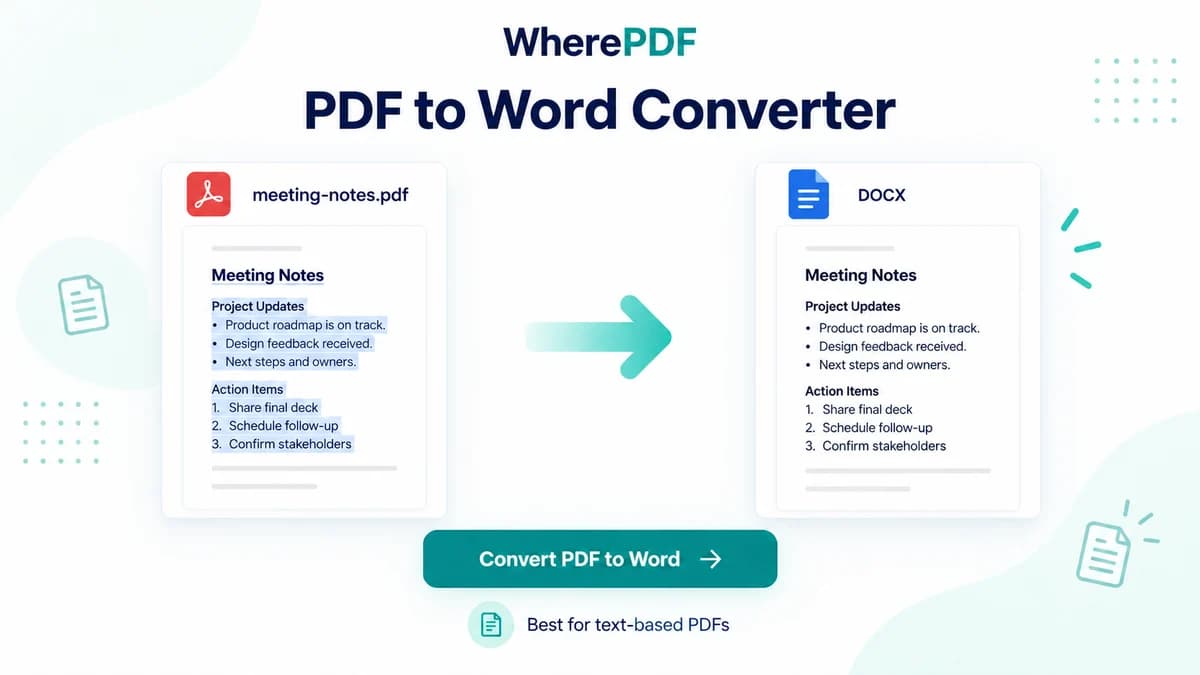
OmniPDF PDF to Word tool converting a text-based sample PDF into a DOCX file

The process

Complete it in three steps

  1. 1

    Check that the PDF contains text

    Try selecting a sentence in the PDF first. If nothing can be selected, the file probably needs OCR, which this version does not provide.

  2. 2

    Upload and convert the document

    Open PDF to Word, choose one text-based PDF up to 10 MB, and select Convert PDF to Word.

  3. 3

    Review the downloaded DOCX

    Open the DOCX in Word, WPS, or LibreOffice Writer and check headings, tables, columns, fonts, and page breaks before editing.

Common questions

How can I tell whether my PDF is text-based?

Open it and try to select or copy a sentence. Selectable text is a good sign that this converter can process it.

Why does a scanned PDF not produce editable text?

A scan contains page images and requires OCR. OCR is not included in the current PDF to Word workflow.

Which parts of the layout should I review?

Check tables, multi-column sections, uncommon fonts, headers, footers, and page breaks because DOCX layout can differ from PDF.

What file does the converter create?

It creates a DOCX document that can be opened in common Word-compatible editors.