WherePDF

Split PDF guide

How to split a PDF by page range

Splitting is useful when you only need a continuous section of a longer PDF, such as pages 1–3 of a form packet or one chapter from a report.

Open Split PDF

No account required. This tool processes your file on this device.
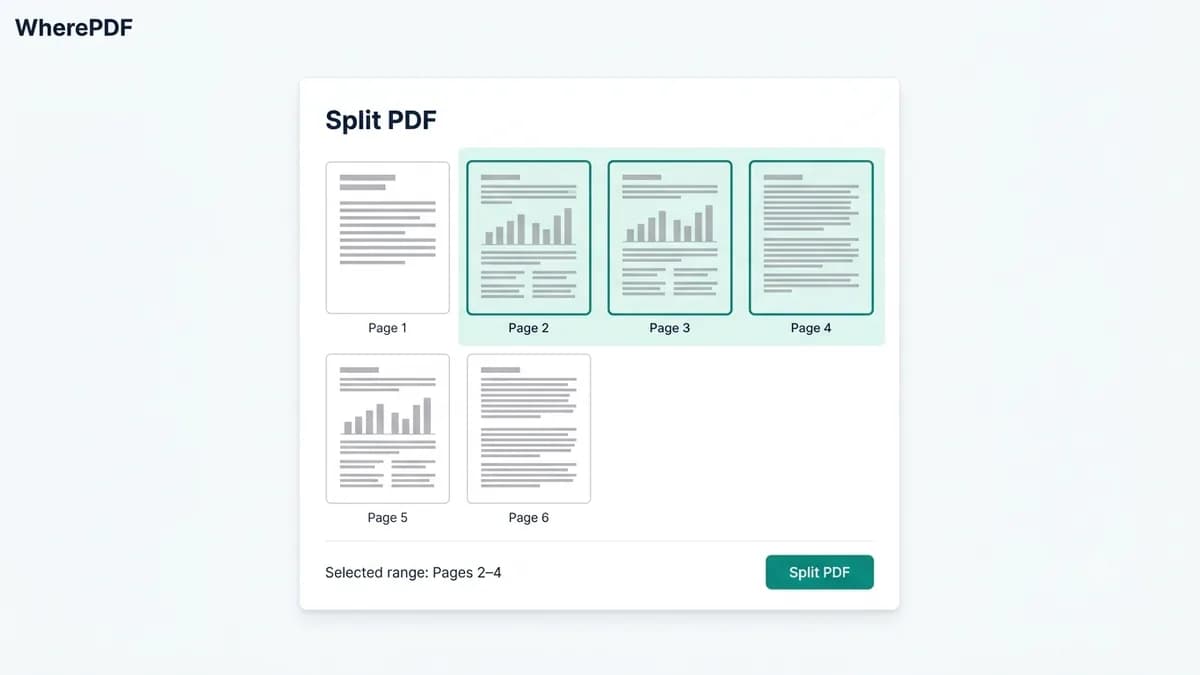
WherePDF Split PDF page preview with a continuous page range selected

The process

Complete it in three steps

  1. 1

    Open Split PDF

    Choose the PDF file you want to separate. The page preview opens after the file is selected.

  2. 2

    Set the page range

    Choose a continuous start and end page. For example, select pages 4 through 8 to create a PDF containing only that range.

  3. 3

    Download the selected pages

    Select Split PDF and save the new document. The source PDF is not edited.

Common questions

Does page numbering start at 1?

Yes. Use the page numbers shown in the PDF preview.

Can I split a scanned PDF?

Yes, as long as the scanned file is a valid PDF.

Can I create several split files at once?

Not in the current version. It creates one new PDF for the page range you select.