Protect PDF guide

How to password protect a PDF online

Add an open password when a PDF should only be readable by people who receive the password. OmniPDF creates a separate encrypted copy, so the unprotected source on your device remains unchanged.

Open Protect PDF

No account required. This tool uses encrypted upload and temporary server processing.
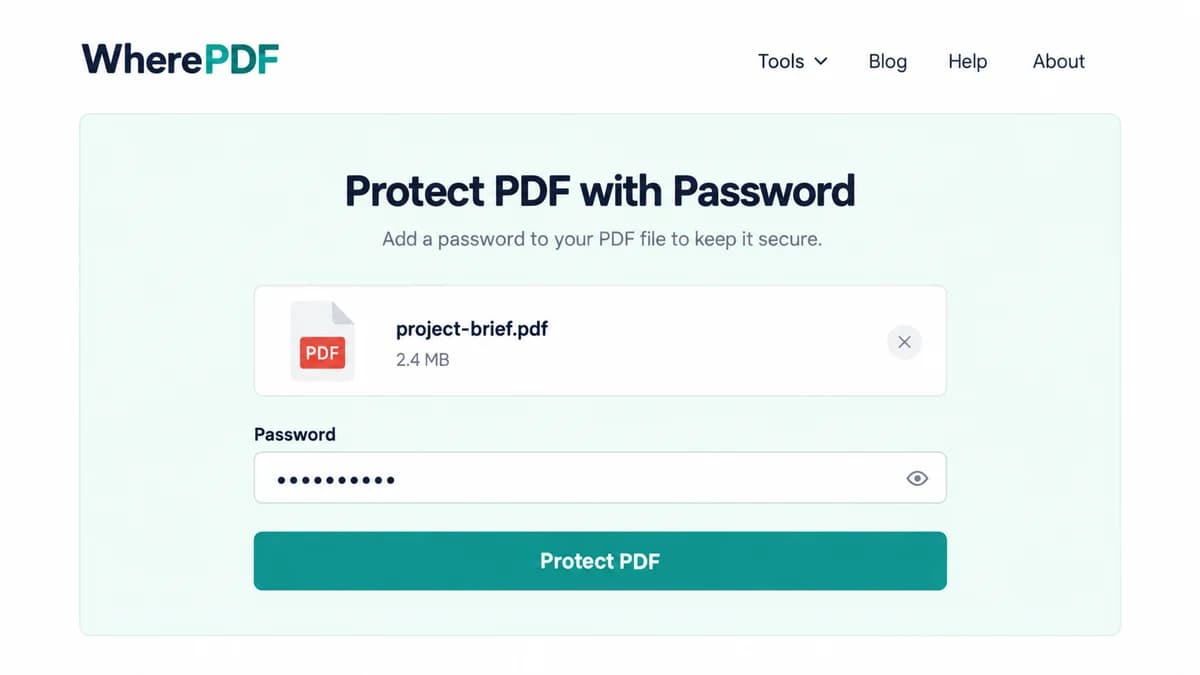
OmniPDF Protect PDF tool with a masked password ready to encrypt a sample PDF

The process

Complete it in three steps

  1. 1

    Choose the PDF to protect

    Open Protect PDF and select one PDF up to 10 MB. Use an unlocked source file that you are authorized to secure.

  2. 2

    Create the open password

    Enter the password that recipients must provide before the document opens. Use a password you can share separately from the PDF.

  3. 3

    Download and verify the protected copy

    Select Protect PDF, download the encrypted PDF, and open the new file once to confirm that the intended password works.

Common questions

What kind of protection does this add?

It adds an open password that must be entered before the protected PDF can be viewed.

Should I send the password with the PDF?

For better separation, share the password through a different channel from the one used to send the document.

Can OmniPDF recover a password I forget?

No. Save the password before distributing the protected file because it cannot be recovered by OmniPDF.

Does protecting the copy change my original PDF?

No. The service creates a new encrypted PDF and leaves the source file on your device unchanged.