Compress PDF guide

How to compress a PDF and choose the right level

Compression helps when a PDF is too large for an email attachment, upload form, or storage limit. The right preset depends on whether you value maximum visual quality or the smallest practical result.

Open Compress PDF

No account required. This tool uses encrypted upload and temporary server processing.
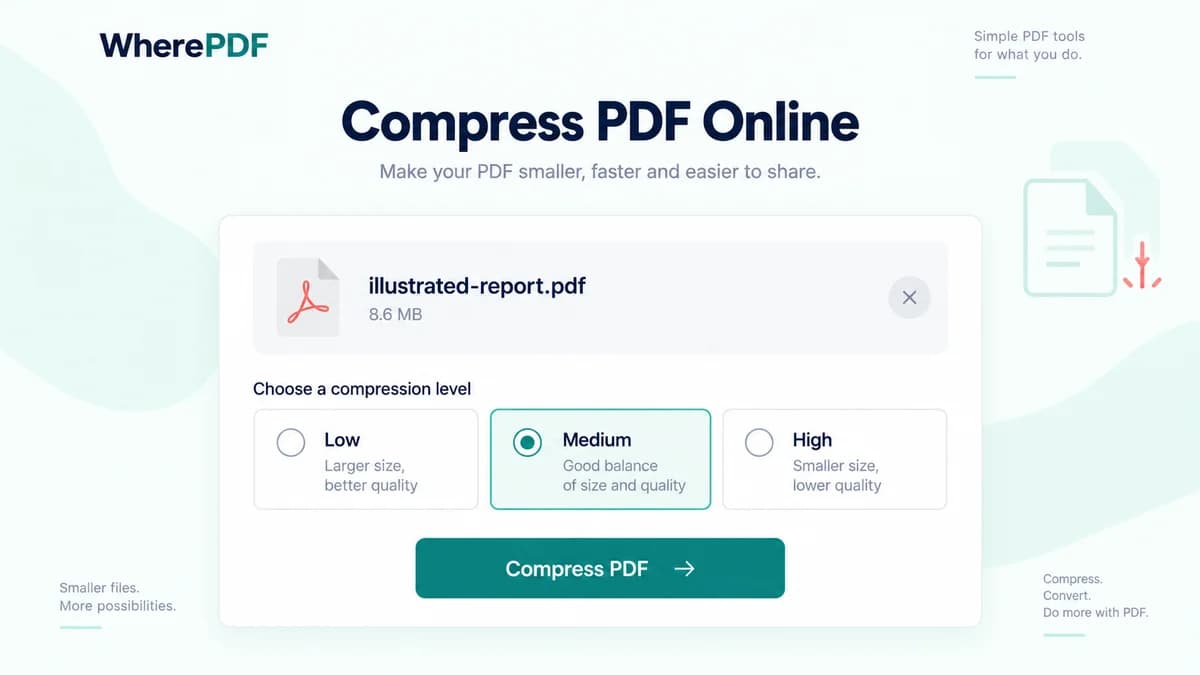
OmniPDF Compress PDF tool showing low, medium, and high compression choices

The process

Complete it in three steps

  1. 1

    Upload the PDF you want to reduce

    Open Compress PDF and select one PDF up to 10 MB. Start from the best-quality source available rather than a repeatedly compressed copy.

  2. 2

    Choose a compression level

    Use low compression to favor quality, medium for a balanced result, or high when reducing file size matters more than image detail.

  3. 3

    Download and compare the result

    Select Compress PDF, then compare the new file size and inspect image-heavy pages at normal viewing size before sharing it.

Common questions

Which compression level should I try first?

Medium is a practical starting point; switch to low if quality is more important or high if the result remains too large.

Why did my PDF not become much smaller?

The document may already use compressed images, efficient fonts, or other optimizations that leave little redundant data.

Does higher compression always produce a better result?

No. It usually favors a smaller file, but detailed images and scans can lose clarity.

What should I check after compression?

Review small text, diagrams, photographs, scanned pages, and the final file size before replacing or sending anything.