Unlock PDF guide

How to unlock a PDF when you know the password

Unlocking is useful when you own a protected document or have permission to work with it repeatedly and no longer want to enter the password each time. The existing password is required.

Open Unlock PDF

No account required. This tool uses encrypted upload and temporary server processing.
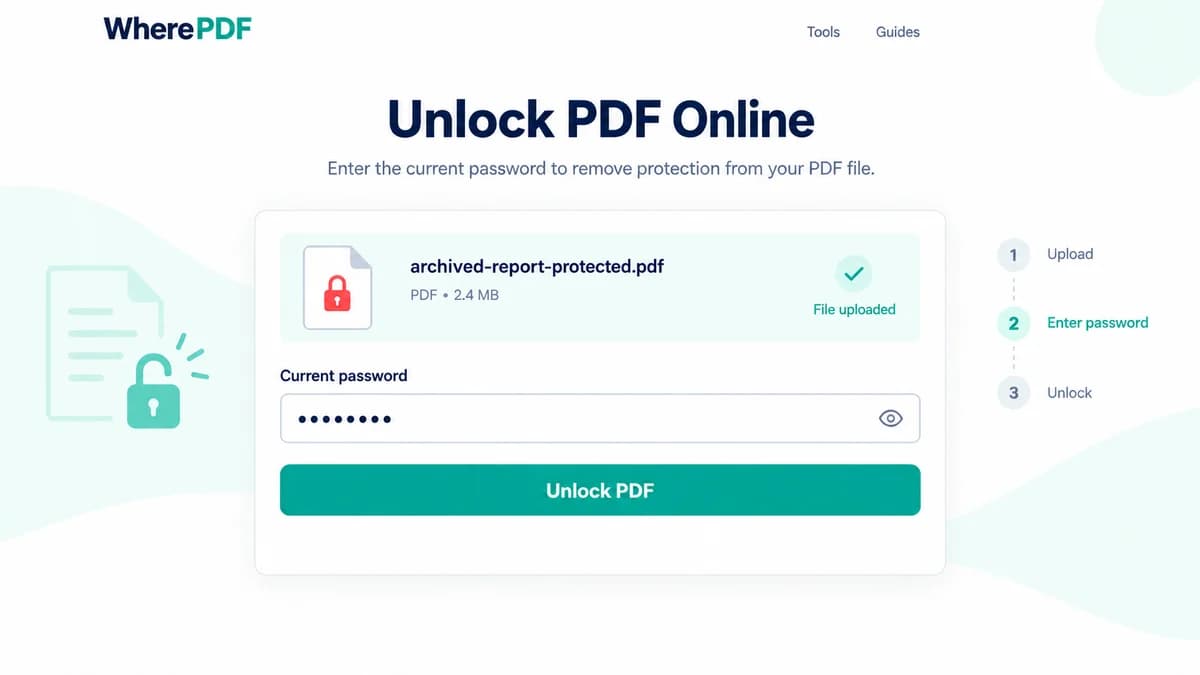
OmniPDF Unlock PDF tool with a protected sample PDF and masked current password

The process

Complete it in three steps

  1. 1

    Select the protected PDF

    Open Unlock PDF and choose one password-protected PDF up to 10 MB that you are permitted to decrypt.

  2. 2

    Enter its current password

    Provide the password that already opens the document. If it is incorrect, processing stops without producing an unlocked file.

  3. 3

    Save the unlocked copy

    Select Unlock PDF and download the decrypted copy. Open it to confirm that a password prompt no longer appears.

Common questions

Can this unlock a PDF without its password?

No. The correct existing password is required before the service can create an unlocked copy.

What happens if I enter the wrong password?

The job fails and no decrypted result is produced; check the password and try the authorized file again.

Will the original protected PDF be replaced?

No. You download a separate unlocked copy while the source file keeps its original protection.

When is an unlocked copy appropriate?

Use one only when you own the document or have permission to remove its encryption and store it without a password.